VPN Extension for Edge: How to Choose and Use One
Learn what an Edge VPN extension does, how to choose one, and what to check before trusting it with your browsing.
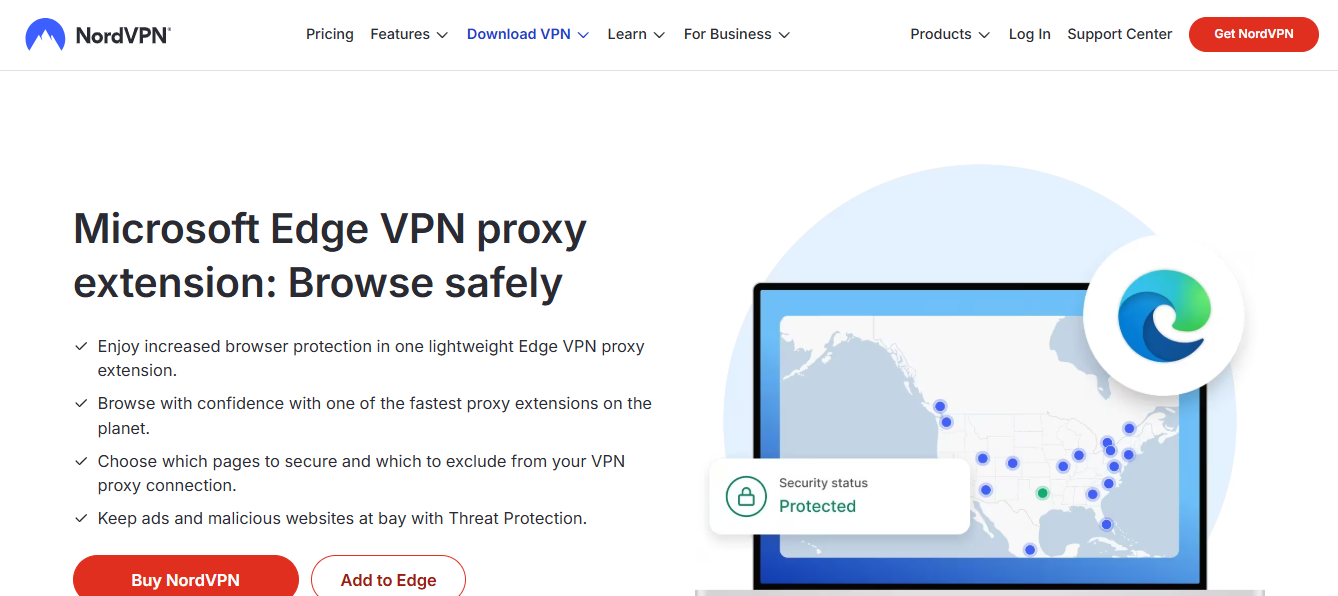
A VPN extension for Edge is an add-on that routes browser traffic through a VPN service, helping mask your IP address and browse more privately. Options listed in Microsoft Edge Add-ons include VeePN and Browsec VPN. The right choice depends on what you need, how the provider handles your data, and whether you want protection for Edge alone or for your whole device.
Editor's pick: NordVPN — fast, secure VPN — Strong encryption, a no-logs policy and apps for every device. 30-day money-back guarantee. Get NordVPN →
Compare VPN approaches for Edge
| Option | Works in Edge | Covers other apps | Setup | Best for |
|---|---|---|---|---|
| Edge VPN extension | Browser traffic | No | Add from Edge Add-ons | Browser-only use |
| Full VPN app | Browser and device traffic | Yes | Install the app | Whole-device coverage |
| Proxy extension | Browser traffic | No | Add the extension | Basic location changes |
| Built-in Edge protection | Limited, if available | No | Enable in Edge settings | Supported Microsoft 365 users |
| No VPN or proxy | No traffic protection | No | No setup | Sites that do not need a VPN |
Compiled November 2026; check the provider's site for current details.
| VPN | Obfuscation | From / month | Plan | Free plan | Refund | Alipay | UnionPay | Crypto | Website opens in China | Trustpilot | |
|---|---|---|---|---|---|---|---|---|---|---|---|
 ZoogVPN | Turn on manually Shadow | $2.49/mo | 27 months: $59.99 | Yes | 7 days | ✓ | ✓ | ✓ | ✓ | Official site blocked; our special link opens (4.4 s) | 4.2/5 (195 reviews) |
 NordVPN | Turn on manually Obfuscated Servers / NordWhisper | $3.49/mo | 27 months: $94.23 | No | 30 days | ? | ✗ | ✓ | ✓ | ✗ Blocked | 4.2/5 (51,628 reviews) |
 ExpressVPN | ✓ On by default all servers | $3.00/mo | 28 months: $84 | No | 30 days | ✗ | ✗ | ✓ | ✗ | ✗ Blocked | 4.4/5 (29,706 reviews) |
 Surfshark | ✓ On by default Camouflage, with OpenVPN | See site | See site | No | 30 days | ✗ | ✗ | ✗ | ✓ | ✗ Blocked | 4.3/5 (31,823 reviews) |
 Proton VPN | Turn on manually Stealth, free plan too | $2.99/mo | 12 months: $35.88 | Yes | 30 days | ✗ | ✗ | ✗ | ✓ | ✗ Blocked | 2.1/5 (1,040 reviews) |
 Astrill VPN | Turn on manually StealthVPN / OpenWeb | $12.50/mo | 24 months: $300 | No | See site | ✗ | ✗ | ✗ | ✓ | ✗ Blocked | 1.3/5 (110 reviews) |
 Private Internet Access | Turn on manually Shadowsocks, OpenVPN only | $2.03/mo | 40 months: $81.2 | No | 30 days | ✗ | ✗ | ✗ | ✗ | ✗ Blocked | 4.2/5 (11,033 reviews) |
 CyberGhost | Turn on manually selected servers | $2.19/mo | 28 months: $61.32 | No | 45 days | ✗ | ✗ | ✗ | ✓ | ✗ Blocked | 4.0/5 (24,178 reviews) |
 PureVPN | Turn on manually switch to OpenVPN | $1.69/mo | 60 months: $101.55 | No | 31 days | ? | ? | ✗ | ✓ | ✗ Blocked | 4.4/5 (17,994 reviews) |
 AdGuard VPN | ✓ On by default TrustTunnel | $2.99/mo | 24 months: $71.76 | Yes | 30 days | ✓ | ✗ | ✓ | ✓ | Official site blocked; our special link opens (3.7 s) | 4.3/5 (290 reviews) |
 Mullvad | Turn on manually QUIC / Shadowsocks / LWO | $5.61/mo | €5/mo | No | 14 days | ✗ | ✗ | ✗ | ✓ | ✗ Blocked | 3.2/5 (192 reviews) |
 Windscribe | Turn on manually Stealth / WStunnel | $5.75/mo | 12 months: $69 | Yes | See site | ✗ | ✗ | ✗ | ✓ | ✗ Blocked | 4.7/5 (13,355 reviews) |
 StrongVPN | Turn on manually Scramble, OpenVPN TCP | See site | See site | No | 30 days | ✓ | ✗ | ✗ | ✗ | ✗ Blocked | 4.4/5 (2,695 reviews) |
 LightXtreme 闪连 | Not listed | $7.08/mo | 12 months: $84.99 | Yes | 30 days | ✓ | ✓ | ✓ | ✓ | ✓ Yes (3.5 s) | No page |
Prices checked 2026-11-10 on each vendor's pricing page (cheapest long plan, USD). Check the vendor's checkout for the final price.
Obfuscation checked 2026-11-14 on each vendor's site and help center: "on by default" = nothing to set; "turn on manually" = switch protocol or mode in settings; "not listed" = the vendor describes no obfuscation.
Payment methods checked 2026-11-10 on each vendor's payment pages: all 14 take cards and PayPal; ✗ = not listed, ? = the vendor's own pages disagree.
China access: whether the official website opens from mainland China networks (tests the website only, not the VPN connection). Last checked 2026-11-18 01:02 Beijing time.
Trustpilot score and review count checked 2026-11-10.
What a VPN extension for Edge does
A browser VPN extension provides a control panel inside Edge for connecting to a VPN server. Depending on the service, it may let you change your apparent location, encrypt supported browser traffic, or block ads and trackers.
A browser extension is not always equivalent to a full VPN app. Some extensions only affect traffic from the browser, while a desktop VPN app can protect traffic from other programs too. Check the provider’s explanation of what is covered before relying on an extension for sensitive activities.
A VPN can improve privacy on untrusted networks and reduce how much your browsing reveals to websites and network operators. It does not make you completely anonymous. Websites may still identify you through account logins, cookies, or other tracking methods, and a VPN provider may be able to see some connection information.
Does Microsoft Edge have a built-in VPN?
Microsoft Edge does not include a general-purpose VPN that encrypts all your device’s internet traffic. To use a VPN with Edge, you can install a browser extension or use a VPN app on your computer. OVPN File: What It Is, How to Open It, and How to Use It
These approaches serve different needs:
- Edge extension: Convenient for controlling VPN features from the browser. Coverage may be limited to browser traffic.
- VPN app: Usually manages connections at the device level, which can include traffic from multiple apps.
- No VPN: Edge still works normally, but your connection does not gain VPN routing from a VPN service.
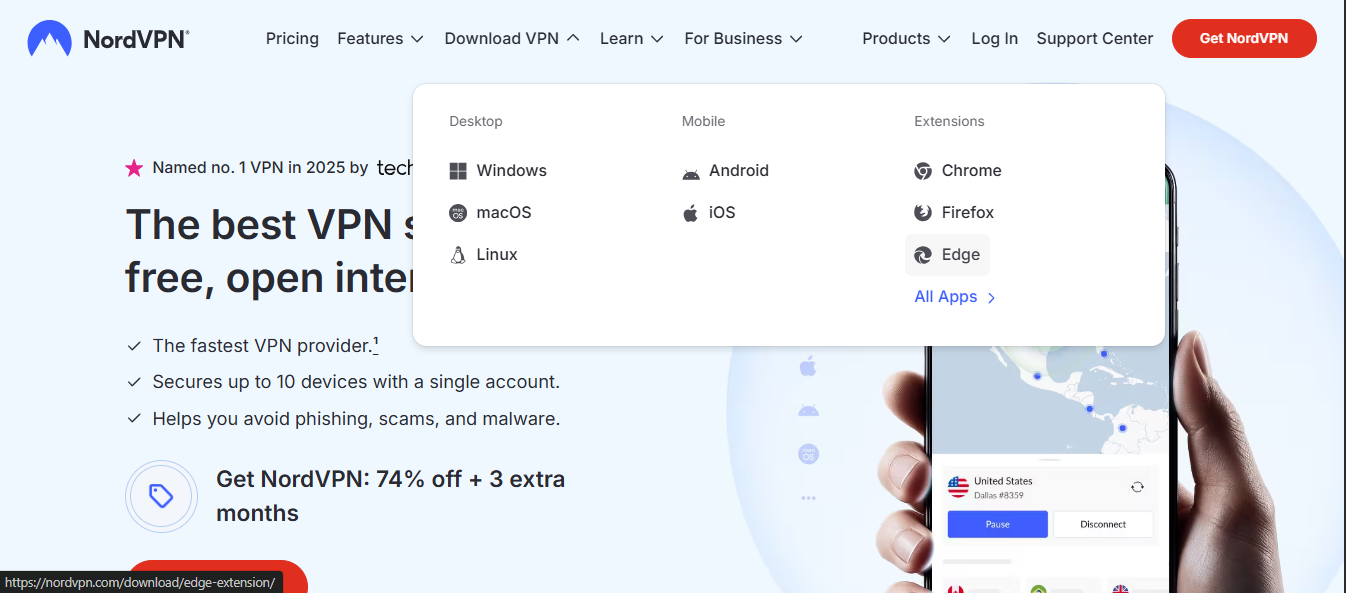
Before installing an add-on, confirm that it is designed for Microsoft Edge and get it from the official Edge Add-ons store or the VPN provider’s own site.
How to choose an Edge VPN extension
The best free VPN extension for Edge depends on your priorities. A free option may suit occasional browsing, but check its limitations and privacy terms rather than assuming it offers the same service as a paid plan.
| What to compare | What to check |
|---|---|
| Privacy policy | What data is collected, how it is used, and whether browsing activity is logged |
| Protection | Which traffic the extension covers and what encryption or security details the provider explains |
| Features | Whether it offers location selection, tracker blocking, or other tools you actually need |
| Limits | Any restrictions on data, locations, speed, or access to support |
| Reputation | The publisher’s identity, store listing details, and recent user feedback |
| Permissions | Whether requested access makes sense for the extension’s stated purpose |
Search results show several options, including VeePN’s “Free VPN for Edge” listing and Browsec VPN in Microsoft Edge Add-ons. VeePN also promotes an Edge add-on on its website. These are examples to research, not a guarantee that either is the best choice for every user. Review each listing’s current details and the provider’s privacy policy before installing. What Is a.ovpn File and How Do You Open One?
Be cautious with broad claims such as “no logs,” “unlimited,” or “fully secure.” Read the service’s terms to understand exactly what those claims mean, and remember that a store listing alone cannot establish how a provider handles data.
Choose an Edge VPN extension
| Check | What to look for | Why it matters | Warning sign |
|---|---|---|---|
| Privacy policy | Clear data practices | Shows what may be collected | Vague or missing policy |
| Logging | Minimal or no activity logs | Limits stored browsing data | Unclear logging claims |
| Permissions | Only necessary access | Reduces exposure | Broad, unexplained access |
| Provider identity | Recognizable, verifiable company | Makes accountability easier | Anonymous operator |
| Security | Reputable encryption and protocols | Helps protect connections | Unsupported security claims |
| Reputation | Independent reviews and history | Offers context beyond marketing | Repeated safety complaints |
Compiled November 2026; check the provider's site for current details.
Is an Edge VPN extension safe?
It can be safe to use a reputable extension, but installing any add-on gives its publisher some access to browser functions. Treat a VPN extension as a service provider you are trusting with part of your online activity. Best VPN Extension for Edge: How to Choose the Right One
Use these checks before connecting:
- Confirm the publisher and install through an official source.
- Read the privacy policy, especially its statements about logs and data sharing.
- Review the requested permissions and avoid add-ons that ask for access unrelated to their purpose.
- Check recent reviews for recurring reports of connection, billing, or privacy problems.
- Remove the extension if you no longer use it, or disconnect it when it is not needed.
A VPN does not replace antivirus software, safe browsing habits, or account security. It also cannot stop every form of tracking or protect information you voluntarily share with a website.
How to install and use one
The exact steps vary by provider, but the process is generally straightforward:
- Open Microsoft Edge Add-ons and search for the VPN service by name.
- Check the publisher, listing details, permissions, and privacy information.
- Select the option to get or install the extension, then approve the browser’s prompt.
- Open the extension from Edge’s toolbar and follow the provider’s setup instructions.
- Connect to a location, then verify that the extension shows an active connection.
If the extension does not appear in the toolbar, check Edge’s extensions menu and pin it if that option is available. To remove it, open the browser’s extension management page and uninstall the add-on. VPN FortiClient: What It Is, How to Connect, and What to Know
Install and use an Edge VPN extension
| Step | Action | Check before continuing | Common issue |
|---|---|---|---|
| 1 | Choose a provider | Review privacy and permissions | Unclear data practices |
| 2 | Open Edge Add-ons | Confirm the publisher | Look-alike listing |
| 3 | Select the extension | Check requested permissions | Excessive access |
| 4 | Add it to Edge | Read the confirmation prompt | Install is blocked |
| 5 | Sign in or create an account | Use the provider’s official flow | Unverified sign-in page |
| 6 | Connect to a location | Check connection status | Server is unavailable |
| 7 | Test the connection | Verify the apparent location | Traffic may be uncovered |
| 8 | Disconnect when finished | Confirm protection is no longer needed | Extension remains connected |
Compiled November 2026; check the provider's site for current details.
Recommendation
Choose a VPN extension for Edge only after checking its privacy policy, permissions, and coverage. VeePN and Browsec VPN are among the options surfaced in current Edge Add-ons search results, but compare their latest terms and features before deciding. If you need VPN protection for programs beyond Edge, consider a full VPN app instead of relying on a browser extension alone.