Remove.ScrollToFixed: How to Remove the ScrollToFixed Plugin from Your Page
A practical guide to removing ScrollToFixed scripts, options, and cleanups for a responsive site.
If you’re maintaining a website that previously used ScrollToFixed to keep an element in view as the page scrolls, you may now need to remove it. Whether you’re refreshing a legacy site, debugging a layout, or migrating to a modern approach, removing ScrollToFixed involves more than deleting a script tag. This guide walks you through the steps to remove ScrollToFixed cleanly, with best practices to avoid layout shake, broken scripts, or accessibility issues.

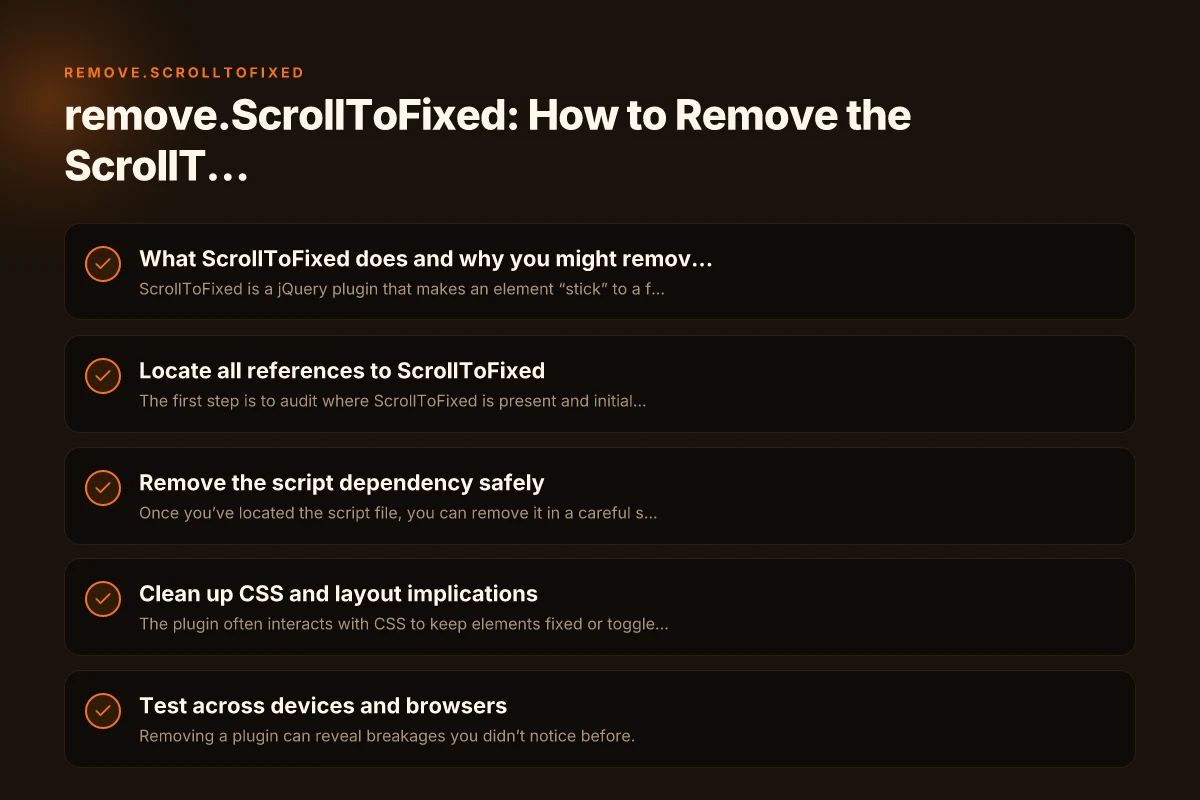
What ScrollToFixed does and why you might remove it
ScrollToFixed is a jQuery plugin that makes an element “stick” to a fixed position in the viewport as you scroll, typically by toggling CSS or by manipulating the element’s position. It was popular for keeping headers, menus, or call-to-action blocks visible. However, as web standards evolved, and with the rise of CSS position: sticky and modern JavaScript approaches, many developers choose to remove ScrollToFixed for several reasons:
- Performance concerns on large pages.
- Conflicts with responsive designs or new CSS techniques.
- Difficulty maintaining older plugin code with newer browsers.
- Moving to a CSS-only solution or a lightweight library alternative.
- Cleaning up unused dependencies to reduce page load times.
If you’re certain you no longer need fixated elements, it’s safe to remove, but plan a clean approach to avoid layout shifts or missing behaviors.
Locate all references to ScrollToFixed
The first step is to audit where ScrollToFixed is present and initialized.
- Look for script inclusions:
- A script tag linking tojquery.scrollToFixed.js or a minified version.
- References to a bundled library that includes ScrollToFixed.
- Search for initialization code:
- $(selector).scrollToFixed() or.scrollToFixed({. }) in your JavaScript files.
- Any custom wrappers around the plugin, such as an initialization function.
- Check for CSS terms:
- Classes or inline styles added by the plugin, e.g., position: fixed, top values, or active/inactive classes.
- Inspect dynamic loading:
- Some sites load plugins conditionally or via a module system. Ensure you scan for dynamic imports or AMD/CommonJS wrappers.
Tip: use your editor’s global search or a site-wide search tool to find all occurrences of “ScrollToFixed” and “scrollToFixed”. Understanding propertychange and its implications for dynamic web applications
Remove the script dependency safely
Once you’ve located the script file, you can remove it in a careful sequence.
- Remove the script tag:
- If your site uses a templating system, delete the inclusion from the base layout or the specific page template.
- If the script is loaded via a module bundler, remove the module import (e.g., require or import statements).
- Remove plugin initialization:
- Eliminate any lines that call $(.).scrollToFixed() or similar.
- If initialization is wrapped in a function, delete or bypass that function call during page load.
- Consider conditional loading:
- If the script is only needed on certain pages, you can guard its inclusion with a page check. But if you’re removing entirely, you can delete regardless.
- Remove related options:
- Data attributes or options passed to the plugin (e.g., top spacing, z-index) should be removed to avoid unused configuration.
Important: keep a backup before deleting, so you can revert if something breaks unexpectedly. A gradual removal in a staging environment helps prevent production issues.
Clean up CSS and layout implications
The plugin often interacts with CSS to keep elements fixed or toggle visibility. After removal, you should review the affected elements’ styles.
- Check the fixed elements:
- If an element is position: fixed. Top: 0. Z-index: something. Make sure these values come from a stable baseline CSS, not from the plugin.
- If the element relied on ScrollToFixed to adjust spacing, you may need to restore natural flow or apply a stable media-query-based approach.
- Restore normal document flow:
- Remove any inline styles added by the plugin during initialization, such as inline position, top, or left values.
- Remove any temporary spacer elements the plugin created to hold space in the document flow.
- Verify responsive behavior:
- On different breakpoints, make sure the element behaves consistently without the plugin. If it was used to keep a header visible on narrow screens, consider a CSS sticky approach or a simpler layout that doesn’t require fixed positioning.
- Audit CSS specificity:
- If you had CSS rules that targeted.scrollToFixed or related classes, remove or repurpose them to avoid unnecessary selectors.
If you replaced ScrollToFixed with CSS sticky positioning, you’ll want to test extensively: PreUnfixed.ScrollToFixed: What It Is, How It Works, and When to Use It
- position: sticky. Top: 0. With a suitable ancestor context.
- Ensure the parent container’s height doesn’t collapse.
- Confirm accessibility and focus behavior remains intact.
Test across devices and browsers
Removing a plugin can reveal breakages you didn’t notice before.
- Functional tests:
- Scroll through the page and verify the element no longer sticks.
- Ensure no JavaScript errors occur in the console after removal.
- Check that sticky elements behave as expected (if you replaced with CSS sticky).
- Visual tests:
- Compare before and after layouts at multiple widths, including mobile.
- Look for jitter, overlap, or content clipping.
- Performance tests:
- Measure page load times before and after removal.
- Ensure no regressions in rendering performance on older devices.
If you maintain a test suite, add tests that assert the absence of the plugin’s behavior, or the presence of the new behavior you implemented.
A quick comparison: CSS sticky vs ScrollToFixed
When removing ScrollToFixed, you might replace it with CSS sticky or a small JavaScript alternative. Here’s a quick guide to help decide:
| Approach | Pros | Cons | When to use |
|---|---|---|---|
| CSS position: sticky | Lightweight, no JS, works in modern browsers | Not supported in all older browsers; depends on ancestor context | Simple sticky headers or badges on modern sites |
| CSS with media queries | Precise control across breakpoints | More CSS work; may require structural changes | Complex responsive behavior needing different states |
| Lightweight JS fallback | Works in older browsers; explicit control | Adds a small script; more maintenance | Legacy support scenarios where CSS sticky isn’t reliable |
| Custom JS rewrite | Full control over behavior | More development effort; risk of regressions | When CSS approaches don’t meet layout needs |
If you can’t rely on CSS alone, consider a minimal JavaScript approach that: PreFixed.ScrollToFixed: A Practical Guide to Sticky Elements and the preFixed ScrollToFixed Pattern
- Attaches a scroll listener to toggle a class on a fixed element.
- Uses requestAnimationFrame for smoother updates.
- Keeps accessibility considerations in mind, ensuring focus and reading order aren’t disrupted.
Potential pitfalls and how to avoid them
Removing ScrollToFixed can create subtle issues if you’re not careful.
- Layout shifts:
- If the fixed element previously pulled layout space with JavaScript, removing it without replacing spacing can cause content to jump. Address with margins or placeholder elements if necessary.
- Event handler leftovers:
- Remove all scroll, resize, or other event listeners attached to the plugin to prevent memory leaks or unexpected behavior.
- Conflicting styles:
- A CSS rule that relied on plugin-added classes may still apply. Clean up or adjust to avoid conflicts.
- Accessibility concerns:
- Ensure that keyboard navigation and focus states remain logical after removal. Sticky elements should not trap focus or hinder screen readers.
Step-by-step removal checklist
A practical, repeatable workflow you can follow:
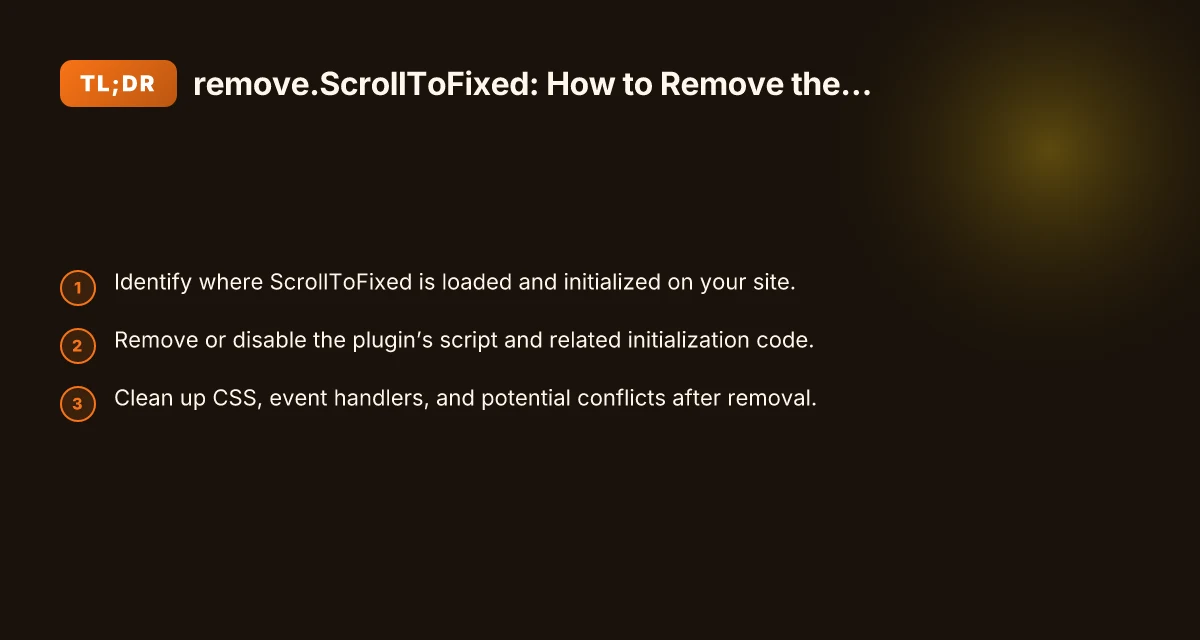
- Locate all ScrollToFixed script references and initialization code.
- Remove script inclusions from HTML or bundle.
- Remove all $(.).scrollToFixed() calls and related initialization blocks.
- Clean up CSS: remove plugin-specific classes and inline styles.
- Apply a replacement approach (CSS sticky or a small JS alternative) if needed.
- Test across devices and browsers. Confirm no console errors.
- Verify no layout shifts and ensure accessibility remains solid.
- Document the removal in your changelog or release notes.
If you’re uncertain about the best replacement, start with CSS sticky for simple use cases, and escalate to a small JavaScript solution only if sticky doesn’t cover your requirements.
Final recommendation
Removing ScrollToFixed is often a win for performance, maintainability, and modernization, but it needs a careful, staged approach. Start by a thorough audit to identify what the plugin touches, then remove the asset with a clean plan for replacing the behavior. Favor CSS solutions like position: sticky for straightforward sticky elements, and only add JavaScript if you must support older browsers or handle complex interactions. Always test comprehensively and keep accessibility at the forefront. By following the steps outlined above, you can remove ScrollToFixed without disrupting users or the site’s layout. PreAbsolute.ScrollToFixed: What It Is and How to Use It Effectively