Settings: A Practical Guide to Personalize Your Tech and Daily Life
A clear, actionable guide to understanding and optimizing settings across devices, apps, and routines.
Settings are more than a menu option. They are the knobs and levers you use to tailor technology to your needs, protect your privacy, and simplify daily tasks. A solid approach to settings starts with the essentials, then expands as you gain comfort and clarity. This guide breaks down how to think about settings, where to find them, and how to apply them in practical ways.

What "settings" really means in everyday tech
Settings are the customizable options built into devices, apps, and services. They control behavior, privacy, notifications, accessibility, display, and more. When you tweak settings, you’re not changing the content you create. You’re changing how you interact with it.
Core categories of settings
- System settings: OS-level options like display, sound, language, and accounts.
- App settings: Per-app controls for permissions, themes, and features.
- Privacy and security: Data collection, sharing, password management, and authentication.
- Notifications: What prompts you and how you’re alerted.
- Accessibility: Text size, contrast, narration, and input methods.
- Backup and synchronization: Data safety and cross-device consistency.
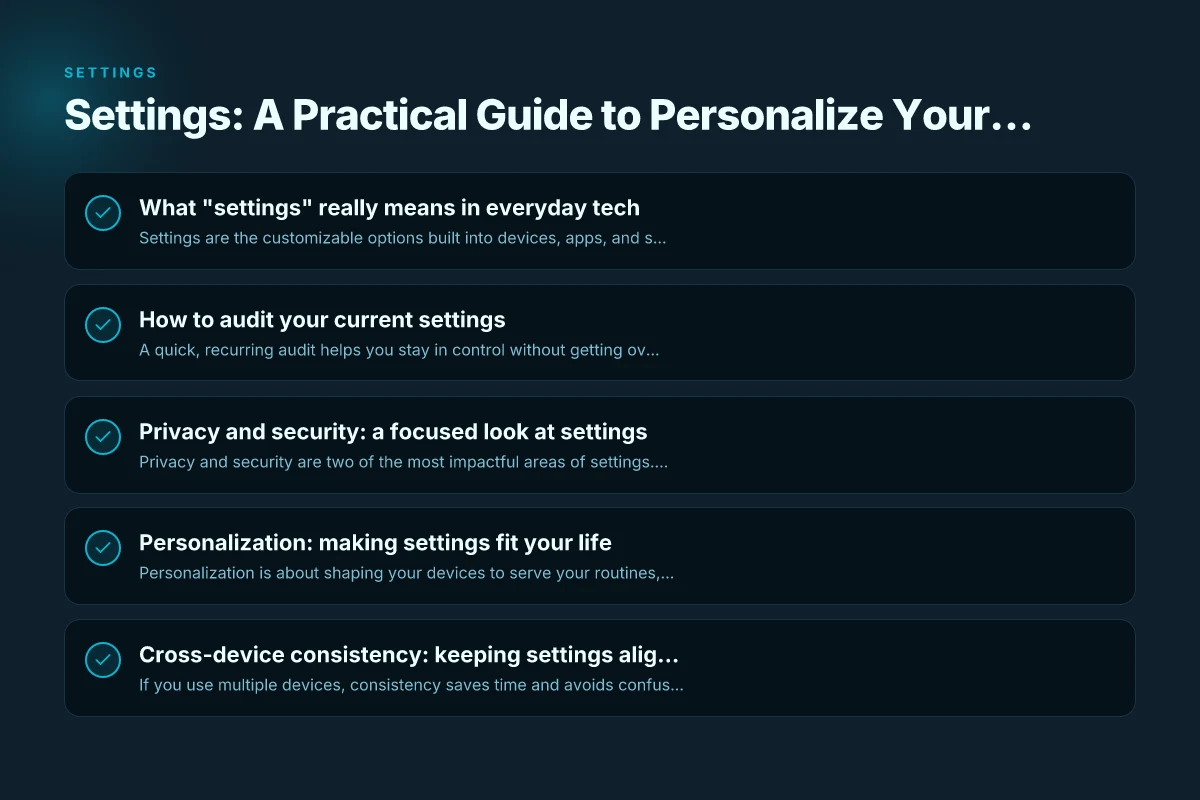
How to audit your current settings
A quick, recurring audit helps you stay in control without getting overwhelmed. Do a 15-minute quarterly check to reset and refine, not to chase perfection.
Step-by-step audit checklist
- Make a list of devices and major apps you use daily.
- Check OS settings (privacy, backups, passwords) on each device.
- Review app permissions (camera, mic, location) and revoke unused ones.
- Tweak notification preferences to reduce noise.
- Verify accessibility options align with your needs.
- Confirm backup status and sync accuracy across devices.
Quick wins you can apply today
- Turn on two-factor authentication where available.
- Set a unified password manager and enable autofill.
- Disable auto-sharing of data with apps you don’t trust.
- Enable “Do Not Disturb” during focus hours or meetings.
- Increase text size or enable high-contrast mode for readability.
Privacy and security: a focused look at settings
Privacy and security are two of the most impactful areas of settings. Small adjustments here can save you time, protect your data, and reduce risk.
Key privacy settings to consider
- Location access: Limit to only when using the app or never for non-essential apps.
- Data sharing: Opt out of analytics and personalized ads where possible.
- Account recovery: Keep recovery email and phone up to date.
- App permissions: Reassess permissions periodically, especially after updates.
Security settings that matter
- Strength and management of passwords: Use a password manager, enable MFA.
- Device lock: Require a passcode, fingerprint, or face ID.
- Automatic updates: Keep your system and apps current with security patches.
- Backup encryption: Ensure backups are encrypted and stored securely.
Personalization: making settings fit your life
Personalization is about shaping your devices to serve your routines, not the other way around. Start with small changes that reduce friction and improve focus. Categories
Practical personalization ideas
- Theme and appearance: Dark mode for low light and battery savings. Larger text for readability.
- Home screen and app layout: Group frequently used apps. Remove clutter.
- Accessibility shortcuts: Create quick access to essentials like magnification, narration, or voice commands.
- Focus and do-not-disturb schedules: Align with work hours, workouts, or family time.
- Voice and AI assistants: Train wake words, routines, and preferred responses.
Example: optimizing a smartphone for daily use
- Display: Enable dark mode and reduce blue light in the evening.
- Notifications: Prioritize messages and calls over social apps. Mute non-urgent alerts.
- Privacy: Limit location sharing to essential apps, disable background tracking.
- Accessibility: Increase font size, enable bold text, and set a readable home screen layout.
- Security: Use a strong passcode, MFA for critical apps, and auto-lock after inactivity.
Cross-device consistency: keeping settings aligned
If you use multiple devices, consistency saves time and avoids confusion. Some settings can be synchronized across platforms. Others should be managed per device.
Where to synchronize
- Accounts and passwords: Use a universal password manager and enable cross-device sync.
- Backups: Enable automatic backups on each device to protect data.
- Theme and accessibility: Some platforms offer system-wide themes and accessibility preferences synchronized.
Where you’ll customize per device
- Hardware controls: Audio routing, screen brightness, and gesture controls may differ.
- App-specific permissions: Apps may need different permissions on iOS, Android, Windows, or macOS.
- Notification behavior: Notification channels and styles can vary by platform.
A practical comparison: settings across common platforms
| Area | iOS/macOS (Apple) | Android/Chromebooks | Windows 11 |
|---|---|---|---|
| Privacy controls | Privacy Dashboard, App Permissions | App permissions per app, Location, Ads IDs | Privacy, Diagnostics data, App permissions |
| Security | FaceID/TouchID, 2FA, Passkeys | Fingerprint, 2FA, Google Play integrity checks | Windows Hello, 2FA, BitLocker |
| Notifications | Focus modes, App notification settings | Do Not Disturb, Priority interruptions | Focus assist, Notification channels |
| Accessibility | VoiceOver, Zoom, Display & Text Size | TalkBack, Magnification, High contrast | Narrator, Magnifier, Color filters |
| Backups | iCloud backups, Time Machine on Mac | Google Drive/OneDrive, local backups | OneDrive, File History, System Image |
Notes:
- The table above highlights typical areas. Exact steps depend on version and device.
- When migrating between ecosystems, mind key differences in how permissions and backups are handled.
Maintenance rhythm: making settings stick
To keep settings meaningful, establish a lightweight maintenance cadence. Regular adjustments prevent drift and ensure your tech serves you, not the other way around.
- Monthly quick check: glance at notifications and privacy permissions.
- Quarterly review: re-evaluate backups, authentication methods, and any major OS/app changes.
- Annual audit: assess whether your core workflows still feel effortless and safe.
Common pitfalls and how to avoid them
- Over-tightening: Restrictive settings can make technology feel frustrating or unusable. Balance privacy with practicality.
- Inconsistent behavior: If a feature works on one device but not another, check per-device settings and account-level preferences.
- Notification overload: Too many alerts destroy focus. Use rules to filter by importance and time.
The recommendation: start with a focused plan
If you’re new to tweaking settings, pick a compact plan: Worldvpn: What It Is, How It Works, and Is It Right for You
- Pick two devices (for most people, a phone and a laptop).
- Target three domains: privacy, security, and notifications.
- Implement one practical change per week, and observe the impact.
Over time, your settings will reflect your routines and preferences. The result is less friction, more focus, and better control over your digital life.
If you want, I can tailor a personalized settings plan for your devices and apps, based on your typical day, tools, and privacy comfort level.