NordVPN Windows: How to Download, Install, and Use the App
Learn how to install NordVPN on Windows, connect securely, and troubleshoot common app issues.
NordVPN Windows users can download the official app, install it on a compatible PC, and connect through the app to encrypt their internet traffic. NordVPN’s support guidance lists Windows 10 (64-bit) and Windows 11 as requirements, along with a working internet connection for downloading the app and signing in. Here’s how to get started and what to check if the VPN does not connect.
Editor's pick: NordVPN — fast, secure VPN — Strong encryption, a no-logs policy and apps for every device. 30-day money-back guarantee. Get NordVPN →
NordVPN for Windows: Compare connection options
| Option | How it works | Best for | What to know |
|---|---|---|---|
| Quick Connect | Chooses a server automatically | Getting connected quickly | No manual server selection |
| Country selection | Connects to a chosen country | Choosing a location | Pick a country in the app |
| Specific server | Connects to a selected server | More control over the connection | Requires manual selection |
| Specialty servers | Offers servers for specific needs | Matching a particular use | Availability depends on the app |
| Pause connection | Temporarily pauses the VPN | Briefly using the regular connection | VPN protection is paused |
| Disconnect | Ends the VPN connection | Returning to an unprotected connection | Traffic no longer uses the VPN |
Compiled November 2026; check the provider's site for current details.
| VPN | Obfuscation | From / month | Plan | Free plan | Refund | Alipay | UnionPay | Crypto | Website opens in China | Trustpilot | |
|---|---|---|---|---|---|---|---|---|---|---|---|
 NordVPN | Turn on manually Obfuscated Servers / NordWhisper | $3.49/mo | 27 months: $94.23 | No | 30 days | ? | ✗ | ✓ | ✓ | ✗ Blocked | 4.2/5 (51,628 reviews) |
 ZoogVPN | Turn on manually Shadow | $2.49/mo | 27 months: $59.99 | Yes | 7 days | ✓ | ✓ | ✓ | ✓ | Official site blocked; our special link opens (4.4 s) | 4.2/5 (195 reviews) |
 ExpressVPN | ✓ On by default all servers | $3.00/mo | 28 months: $84 | No | 30 days | ✗ | ✗ | ✓ | ✗ | ✗ Blocked | 4.4/5 (29,706 reviews) |
 Surfshark | ✓ On by default Camouflage, with OpenVPN | See site | See site | No | 30 days | ✗ | ✗ | ✗ | ✓ | ✗ Blocked | 4.3/5 (31,823 reviews) |
 Proton VPN | Turn on manually Stealth, free plan too | $2.99/mo | 12 months: $35.88 | Yes | 30 days | ✗ | ✗ | ✗ | ✓ | ✗ Blocked | 2.1/5 (1,040 reviews) |
 Astrill VPN | Turn on manually StealthVPN / OpenWeb | $12.50/mo | 24 months: $300 | No | See site | ✗ | ✗ | ✗ | ✓ | ✗ Blocked | 1.3/5 (110 reviews) |
 Private Internet Access | Turn on manually Shadowsocks, OpenVPN only | $2.03/mo | 40 months: $81.2 | No | 30 days | ✗ | ✗ | ✗ | ✗ | ✗ Blocked | 4.2/5 (11,033 reviews) |
 CyberGhost | Turn on manually selected servers | $2.19/mo | 28 months: $61.32 | No | 45 days | ✗ | ✗ | ✗ | ✓ | ✗ Blocked | 4.0/5 (24,178 reviews) |
 PureVPN | Turn on manually switch to OpenVPN | $1.69/mo | 60 months: $101.55 | No | 31 days | ? | ? | ✗ | ✓ | ✗ Blocked | 4.4/5 (17,994 reviews) |
 AdGuard VPN | ✓ On by default TrustTunnel | $2.99/mo | 24 months: $71.76 | Yes | 30 days | ✓ | ✗ | ✓ | ✓ | Official site blocked; our special link opens (3.7 s) | 4.3/5 (290 reviews) |
 Mullvad | Turn on manually QUIC / Shadowsocks / LWO | $5.61/mo | €5/mo | No | 14 days | ✗ | ✗ | ✗ | ✓ | ✗ Blocked | 3.2/5 (192 reviews) |
 Windscribe | Turn on manually Stealth / WStunnel | $5.75/mo | 12 months: $69 | Yes | See site | ✗ | ✗ | ✗ | ✓ | ✗ Blocked | 4.7/5 (13,355 reviews) |
 StrongVPN | Turn on manually Scramble, OpenVPN TCP | See site | See site | No | 30 days | ✓ | ✗ | ✗ | ✗ | ✗ Blocked | 4.4/5 (2,695 reviews) |
 LightXtreme 闪连 | Not listed | $7.08/mo | 12 months: $84.99 | Yes | 30 days | ✓ | ✓ | ✓ | ✓ | ✓ Yes (3.5 s) | No page |
Prices checked 2026-11-10 on each vendor's pricing page (cheapest long plan, USD). Check the vendor's checkout for the final price.
Obfuscation checked 2026-11-14 on each vendor's site and help center: "on by default" = nothing to set; "turn on manually" = switch protocol or mode in settings; "not listed" = the vendor describes no obfuscation.
Payment methods checked 2026-11-10 on each vendor's payment pages: all 14 take cards and PayPal; ✗ = not listed, ? = the vendor's own pages disagree.
China access: whether the official website opens from mainland China networks (tests the website only, not the VPN connection). Last checked 2026-11-18 01:02 Beijing time.
Trustpilot score and review count checked 2026-11-10.
Download NordVPN for Windows
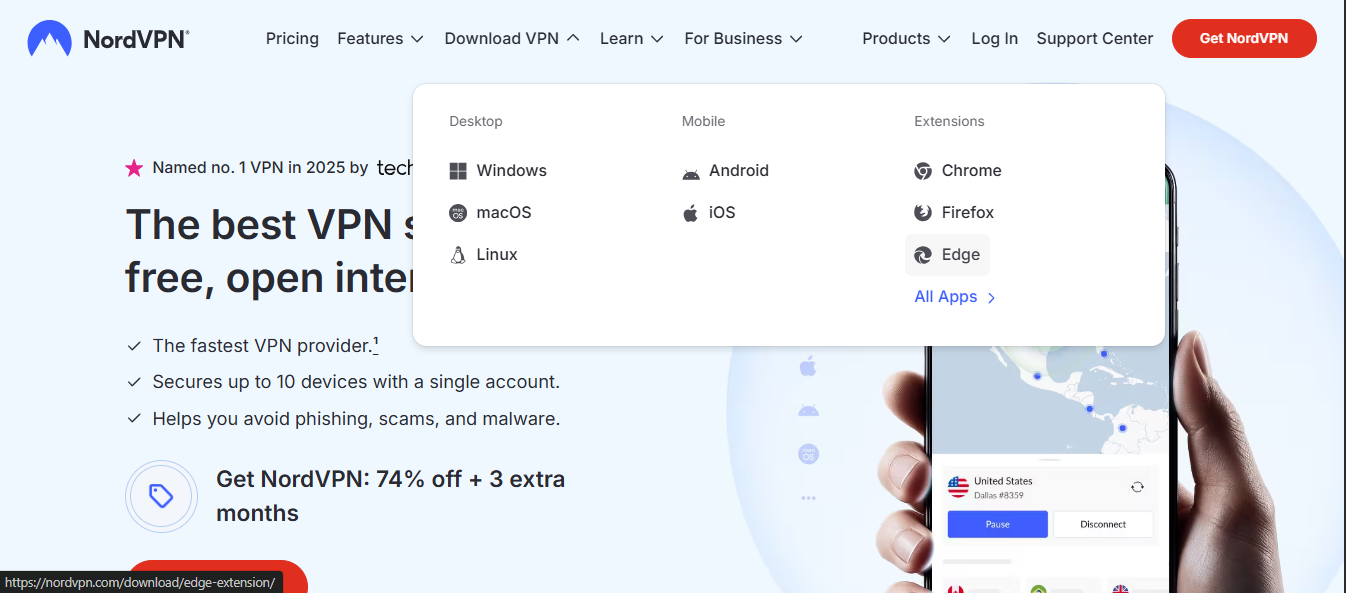
For the safest, simplest setup, get the Windows installer from NordVPN’s official website rather than an unfamiliar download site. The official download page provides the app for a PC or laptop, while NordVPN’s support page covers installation and use.
Before downloading, check that:
- Your PC runs Windows 10 (64-bit) or Windows 11.
- You have an internet connection.
- You can sign in to your Nord Account, or are ready to create one.
Once you have the installer, open it and follow the on-screen prompts. If Windows asks for permission to make changes, confirm only if you launched the installer you downloaded from NordVPN.
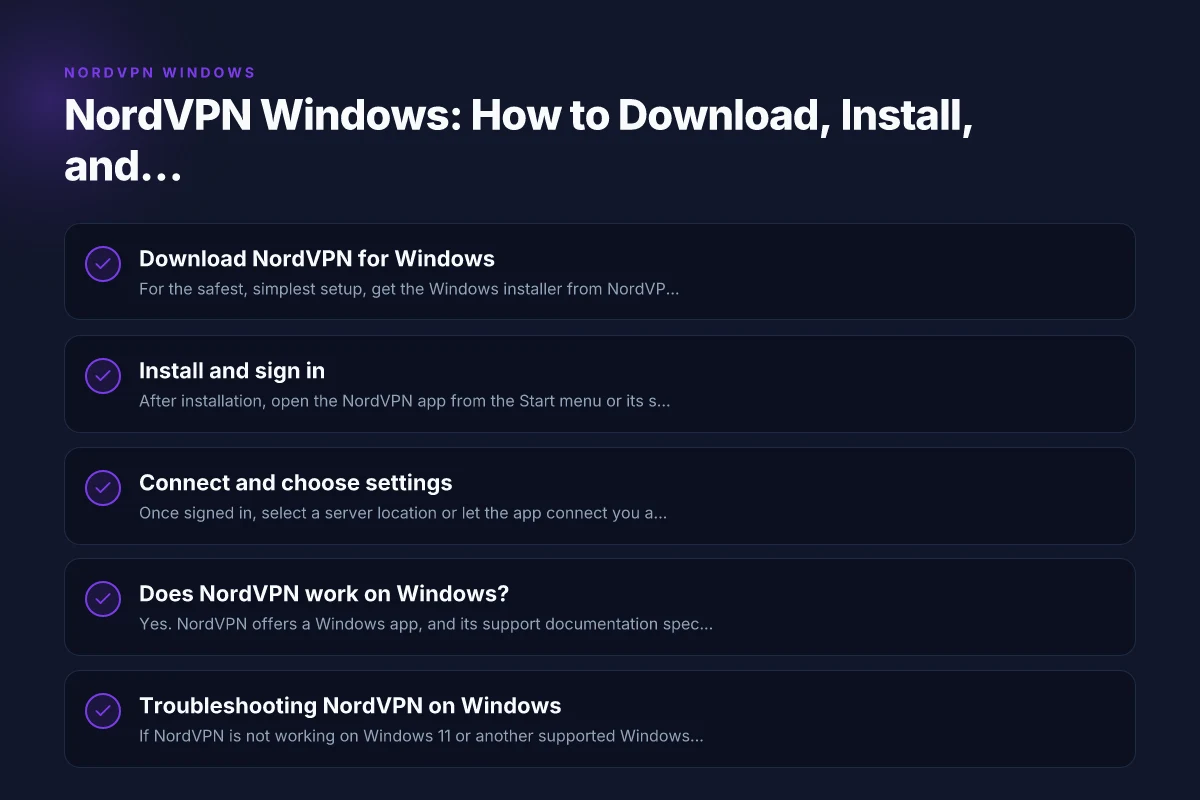
Install and sign in
After installation, open the NordVPN app from the Start menu or its shortcut. Sign in with your Nord Account when prompted. If you do not have an account, follow the account creation options on NordVPN’s website. Microsoft Edge Secure Network VPN Reviews: Is It Safe and Worth Using?
The basic setup is:
- Download the Windows app from NordVPN’s official download page.
- Open the downloaded installer and follow its instructions.
- Launch NordVPN once installation is complete.
- Sign in to your Nord Account.
- Choose a server or use the app’s quick-connect option.
Keep the app updated when prompted. Updates can include changes to the app and may address compatibility or connection problems. If you are installing the app on a work-managed PC, your organization’s device policies may restrict software installation. Contact your IT administrator if you cannot proceed.
NordVPN on Windows: Troubleshooting options
| Issue | First step | Next step | When to try it |
|---|---|---|---|
| App will not open | Restart the app | Restart Windows | After the app stops responding |
| Cannot sign in | Check your credentials | Reset your password | When sign-in fails |
| Cannot connect | Try another server | Restart the app | When a connection attempt fails |
| Connection is slow | Choose a different server | Check your internet connection | When speeds drop |
| App is out of date | Check for an update | Install the latest version | When problems persist |
| VPN disconnects | Reconnect in the app | Try another server | When the connection drops |
| Problem remains | Contact NordVPN support | Share the issue details | After basic steps fail |
Compiled November 2026; check the provider's site for current details. Nord VPN in China: What Travelers Need to Know
Connect and choose settings
Once signed in, select a server location or let the app connect you automatically. When connected, your internet traffic travels through the VPN connection, and websites see the VPN server’s IP address rather than your regular public IP address. A VPN can add privacy protection on networks you do not fully trust, but it does not make you anonymous or replace sensible security habits.
Use the app’s settings to review connection behavior and available protection features. Options may vary by app version and account setup, so check the current Windows app rather than relying on instructions for an older interface.
| Approach | What it does | Useful when |
|---|---|---|
| Quick connect | Connects you without manually picking a location | You want a straightforward VPN connection |
| Choose a server | Lets you select an available server location | You need a particular location |
| Adjust app settings | Changes connection or protection preferences | You want the app to fit your routine |
A VPN may affect how a website or streaming service handles your connection. Some services restrict access based on location or may block VPN traffic. If a service does not work while connected, try another available server or disconnect and check the service’s own access requirements. Do not assume that a VPN guarantees access to a particular platform.
Does NordVPN work on Windows?
Yes. NordVPN offers a Windows app, and its support documentation specifies Windows 10 (64-bit) and Windows 11 as supported starting points. For the smoothest installation, use a supported version of Windows, keep the system and app current, and download the installer from the official source. Does Microsoft Edge Have VPN? What Edge Secure Network Can Do
NordVPN can be useful for:
- Encrypting traffic between your Windows PC and the VPN server.
- Using a different IP address while connected.
- Adding a layer of protection when browsing on public Wi-Fi.
- Connecting to a chosen server location when it suits your needs.
A VPN cannot prevent every online risk. It does not automatically stop phishing, malicious downloads, weak passwords, or unsafe account practices. Continue to use trusted security software, install Windows updates, and verify websites before entering sensitive information.
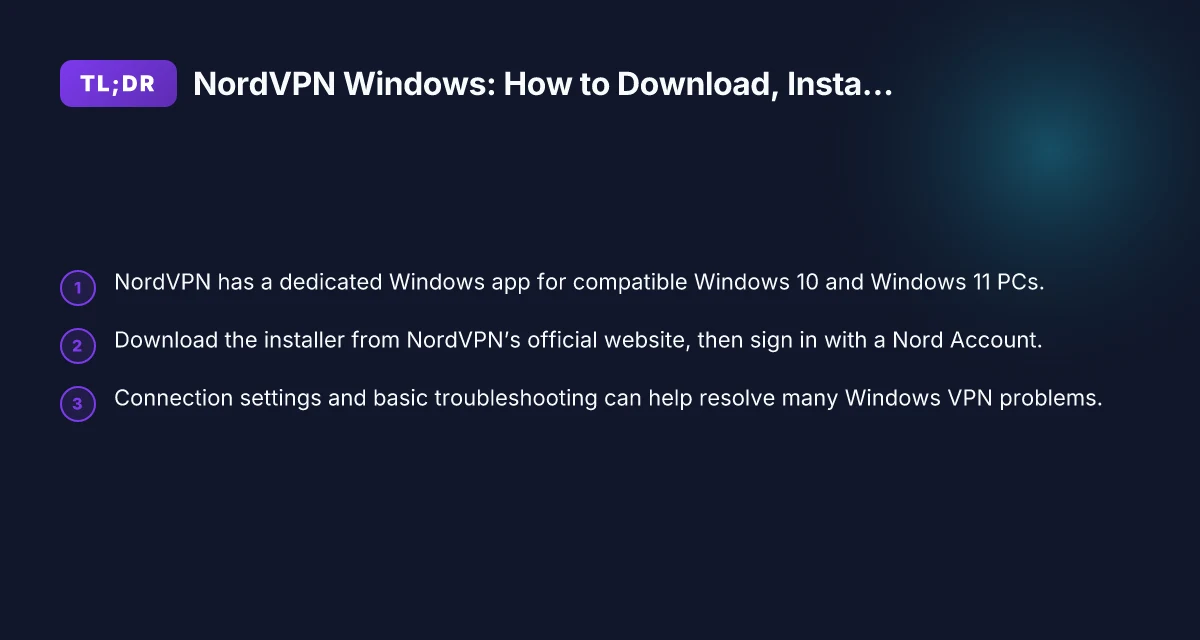
Troubleshooting NordVPN on Windows
If NordVPN is not working on Windows 11 or another supported Windows version, start with basic checks before changing advanced settings.
- Check your internet connection: Disconnect from the VPN and see whether ordinary websites load. If they do not, the issue may be with your internet service or network.
- Restart the app and PC: Close NordVPN fully, reopen it, and restart Windows if the problem continues.
- Update the app: An older app version may not match current support guidance. Install the latest version from NordVPN’s official website.
- Try a different server: A specific server may be temporarily unavailable or unsuitable for a particular site.
- Review network restrictions: Firewalls, antivirus tools, workplace policies, or router settings can interfere with VPN connections. Do not disable security protections permanently. Check their settings or ask the network administrator for help.
- Reinstall if needed: If the app will not open or keeps failing, uninstall it through Windows settings, restart your PC, and install a fresh copy from NordVPN’s official download page.
If the problem persists, consult NordVPN’s Windows support instructions or contact NordVPN support. Include your Windows version, app version, and a clear description of the issue, but avoid sharing passwords or other sensitive account details. How to Enable VPN in Edge: Turn On Microsoft Edge Secure Network
NordVPN for Windows: Getting started checklist
| Step | What to do | What to check | Ready when |
|---|---|---|---|
| Download | Get the Windows app | Use NordVPN’s official download source | The installer is downloaded |
| Install | Run the installer | Follow the setup prompts | The app is installed |
| Sign in | Enter your account details | Confirm the credentials | Your account opens |
| Connect | Select Quick Connect or a server | Check the connection status | The app shows connected |
| Choose a location | Pick a country or server | Confirm your selection | The chosen server connects |
| Review settings | Open the app settings | Choose options that suit you | Preferences are set |
| Test connection | Open a website or app | Confirm access works | Your online activity loads |
Compiled November 2026; check the provider's site for current details.
Recommendation
For a Windows PC, download NordVPN directly from the official website, confirm that your system meets the stated requirements, and sign in with your Nord Account. Start with quick connect, then explore server choices and settings as needed. If connection problems arise, check your internet first, update the app, and try another server before moving on to more involved troubleshooting.