Clash for iOS: How to Choose and Set Up a Client
Learn what Clash for iOS refers to, how to choose a compatible app, and what to check before importing a configuration.
If you’re looking for Clash for iOS, start by choosing an iOS-compatible client rather than assuming there is one universal official Clash app. The available search results include Clash Mi, an App Store app described as a rule-based network proxy tool, and Clash Mi projects for multiple platforms. Your best choice depends on device compatibility, the configuration format you have, and whether the app is available in your region.
Comparison of iOS client options
| Option | Best for | Setup effort | Configuration needs | Main consideration |
|---|---|---|---|---|
| Clash Mi | Users considering this client | Check compatibility | Import a configuration | Confirm it fits your needs |
| Another Clash-compatible client | Comparing alternatives | Varies by app | Import a configuration | Check supported formats |
| VPN provider app | Provider-managed setup | Usually guided | Provider account or settings | Less manual control |
| Manual network setup | Specific network requirements | More involved | Enter settings yourself | Requires accurate details |
| No client | Users who do not need proxy routing | None | None | No Clash features |
| Existing iOS client | Users already set up | Low if configured | Reuse current configuration | Check ongoing support |
Compiled November 2026; check the provider's site for current details.
What “Clash for iOS” means
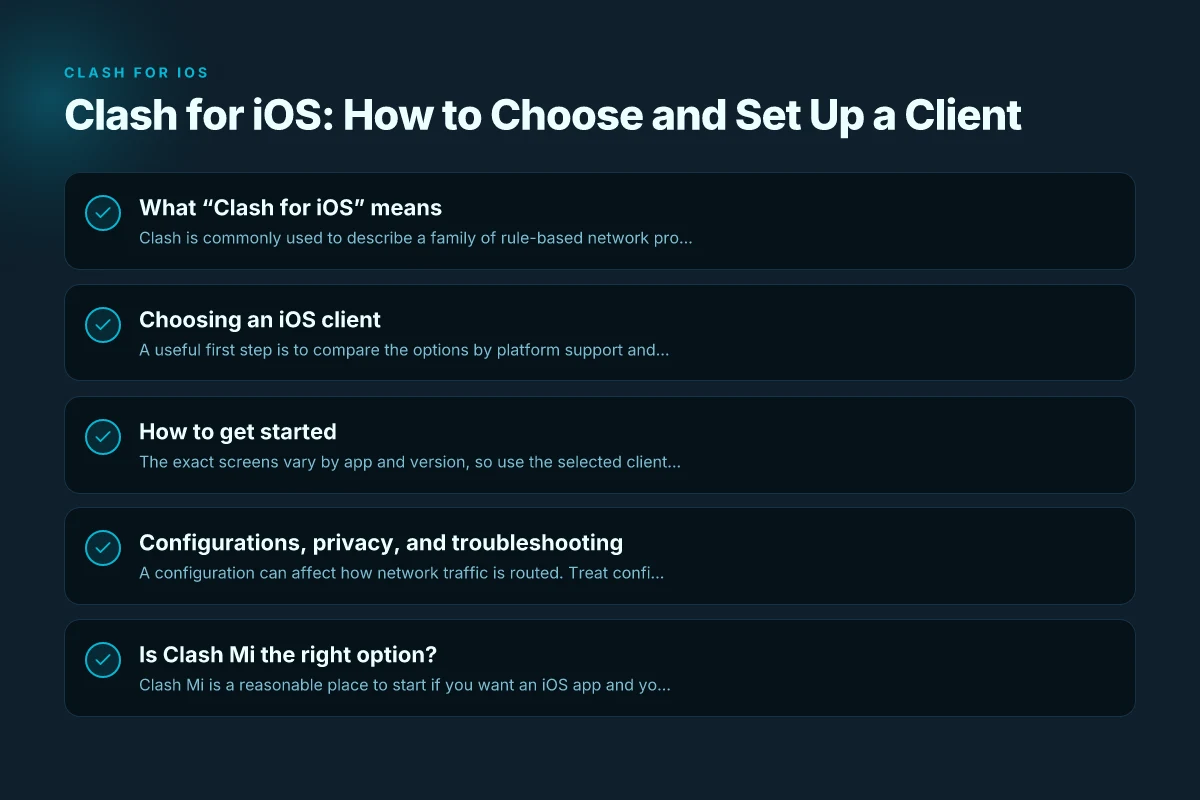
Clash is commonly used to describe a family of rule-based network proxy clients and compatible configurations. On iPhone and iPad, the name may refer to a particular app, a project related to the Clash ecosystem, or a guide explaining how to use a compatible client.
One result is Clash Mi on Apple’s App Store. Its listing describes it as a “simple and powerful, rule-based network proxy tool” and says it requires iOS 15 or later on iPhone and iPadOS 15 or later on iPad. Another result, KaringX/clashmi, describes Clash Mihomo as a multi-platform client for iOS, macOS, Android, Windows, and Linux, with a built-in Mihomo core.
These listings are related, but they are not automatically interchangeable. Before installing anything, confirm that the app’s current listing, developer details, and configuration support match what you need.
Choosing an iOS client
A useful first step is to compare the options by platform support and the information available in their listings. VPN Free: How to Choose a Free VPN Safely
| Option | What the search result says | What to check |
|---|---|---|
| Clash Mi on the App Store | Rule-based network proxy tool; requires iOS 15 or later | Availability in your App Store region, current requirements, and configuration compatibility |
| KaringX/clashmi on GitHub | Clash Mihomo client for iOS and several other platforms; includes a Mihomo core | Project documentation, supported configuration formats, and installation guidance |
| Clash iOS download page | A page presenting a Clash iOS download option | Confirm what app or project it links to and whether the source is trustworthy |
An App Store listing is generally the most straightforward route for installing an app on an iPhone or iPad. A GitHub project can provide useful technical details and release information, but installation steps may be different. A download page should be treated as a starting point for verification, not proof that a file is official or safe.
Before choosing, ask:
- Does the client support your iOS or iPadOS version?
- Does it accept the type of configuration you have?
- Is it actively maintained, and can you find current documentation?
- Can you identify the developer and confirm you are using the intended app?
Getting started and setup checklist
| Step | What to do | What you need | Check before continuing |
|---|---|---|---|
| Choose a client | Compare iOS options | Your device and needs | Confirm compatibility |
| Obtain the app | Use an appropriate source | Client name | Verify the app is genuine |
| Get a configuration | Obtain one from a trusted provider or source | Configuration file or link | Understand who supplied it |
| Import configuration | Follow the client’s instructions | Configuration details | Check for import errors |
| Review permissions | Read iOS prompts carefully | Installed client | Allow only what you understand |
| Connect | Enable the client’s connection | Imported configuration | Confirm the connection status |
| Test use | Check the services you need | Active connection | Disconnect if something seems wrong |
Compiled November 2026; check the provider's site for current details. VPN Extension for Edge: How to Choose and Use One
How to get started
The exact screens vary by app and version, so use the selected client’s own instructions. In general, the setup involves installing the app, adding a configuration, reviewing it, and then enabling the connection.
- Check compatibility. Confirm your device meets the app’s current system requirements. The Clash Mi listing in the search results specifies iOS 15 or later for iPhone and iPadOS 15 or later for iPad.
- Install from a source you trust. If you choose the App Store, verify the app name and developer on the listing. If you use a project hosted on GitHub, follow its documentation and review the release information.
- Add your configuration. Use the method supported by the client, such as importing a file or adding a configuration link, if offered. Only use a configuration provided by a source you trust.
- Review the settings. Check the selected profile and available rules or modes before connecting. Be cautious with unfamiliar profiles and links.
- Connect and test. Turn the connection on within the app, then check that the apps and websites you need behave as expected. Disconnect if anything looks unfamiliar or stops working correctly.
Do not assume that installing a client supplies a working configuration. The app and its configuration are separate: a client provides the interface and network features, while the configuration determines how traffic is handled.
Configurations, privacy, and troubleshooting
A configuration can affect how network traffic is routed. Treat configuration links and files as sensitive, particularly when they come from a subscription or another person. Avoid sharing them publicly, and read the provider’s privacy and security information before use.
If the client does not connect, check the basics before changing advanced settings: Cj.cj.net VPN: What the Website Is and How to Find VPN Partner Information
- Confirm that the configuration was imported successfully and is current.
- Verify that your device has an internet connection.
- Check that the selected profile or mode is appropriate.
- Look for errors in the app’s status or logs, if available.
- Consult the client’s documentation or the configuration provider’s support instructions.
If an app is missing from your App Store, availability may depend on your region or account. Check the official listing for your region rather than relying on third-party download claims. Do not install a profile, certificate, or app from an unfamiliar source just to bypass an availability issue.
Configuration, privacy, and troubleshooting decisions
| Situation | First check | Suggested action | Privacy consideration | When to seek help |
|---|---|---|---|---|
| Configuration will not import | File or link format | Confirm it matches the client | Treat configurations as sensitive | Import still fails |
| Client will not connect | Configuration and connection status | Recheck settings, then retry | Avoid sharing configuration details | Connection remains unavailable |
| Unexpected permission prompt | Prompt wording and purpose | Decline if unclear | Grant only necessary access | The prompt cannot be explained |
| Connection works inconsistently | Current configuration and network | Test again on a trusted network | Avoid unknown configuration sources | Problem persists |
| Unsure who supplied a configuration | Source and provider | Verify its origin before use | A configuration can expose traffic details | Source cannot be verified |
| Considering Clash Mi | Compatibility and setup needs | Compare it with other clients | Review its permissions and source | Requirements remain unclear |
Compiled November 2026; check the provider's site for current details.
Is Clash Mi the right option?
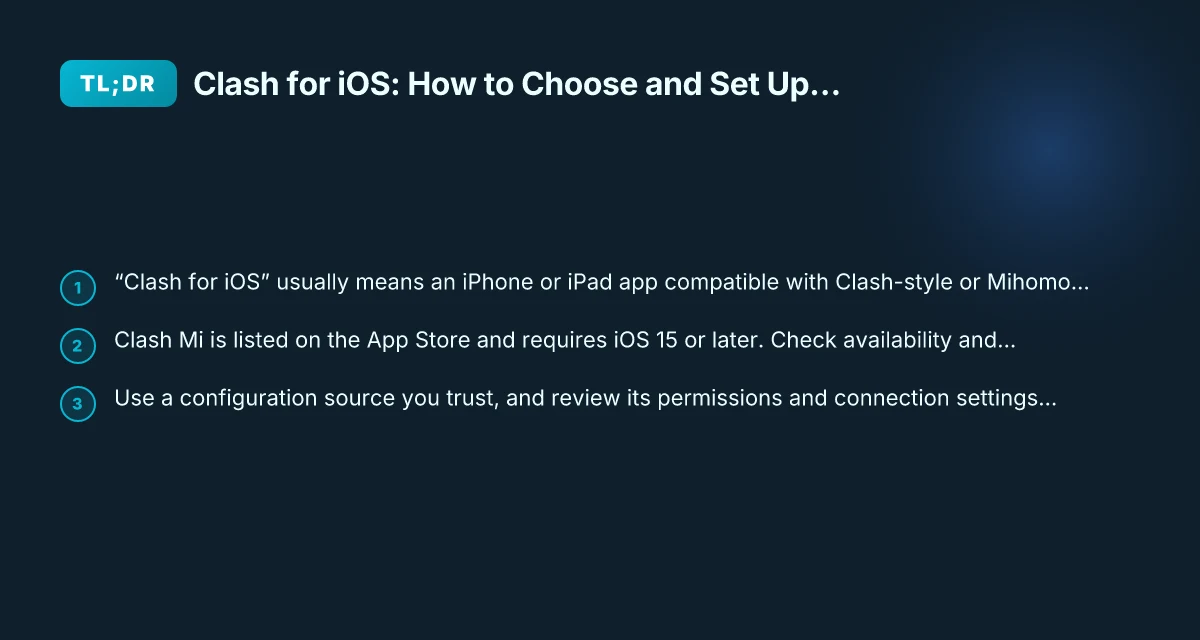
Clash Mi is a reasonable place to start if you want an iOS app and your device meets the listed system requirements. Its App Store description identifies it as a rule-based proxy tool, while the KaringX/clashmi project describes a Mihomo-based client available across several operating systems. OpenVPN Connect: Download, Set Up, and Use the Official VPN Client
However, the search results do not establish that every Clash-format configuration will work in every app, or that the names refer to identical releases. Check the specific app’s documentation and current release information before relying on it. Also make sure you are comfortable with the configuration provider and the way the app handles network traffic.
Recommendation
For most iPhone and iPad users, begin with the Clash Mi App Store listing, verify its current requirements and regional availability, and install only if it supports your configuration. If you need more technical detail or another platform, review the KaringX/clashmi GitHub documentation. In either case, use a trusted configuration source and confirm what the app will route before connecting.